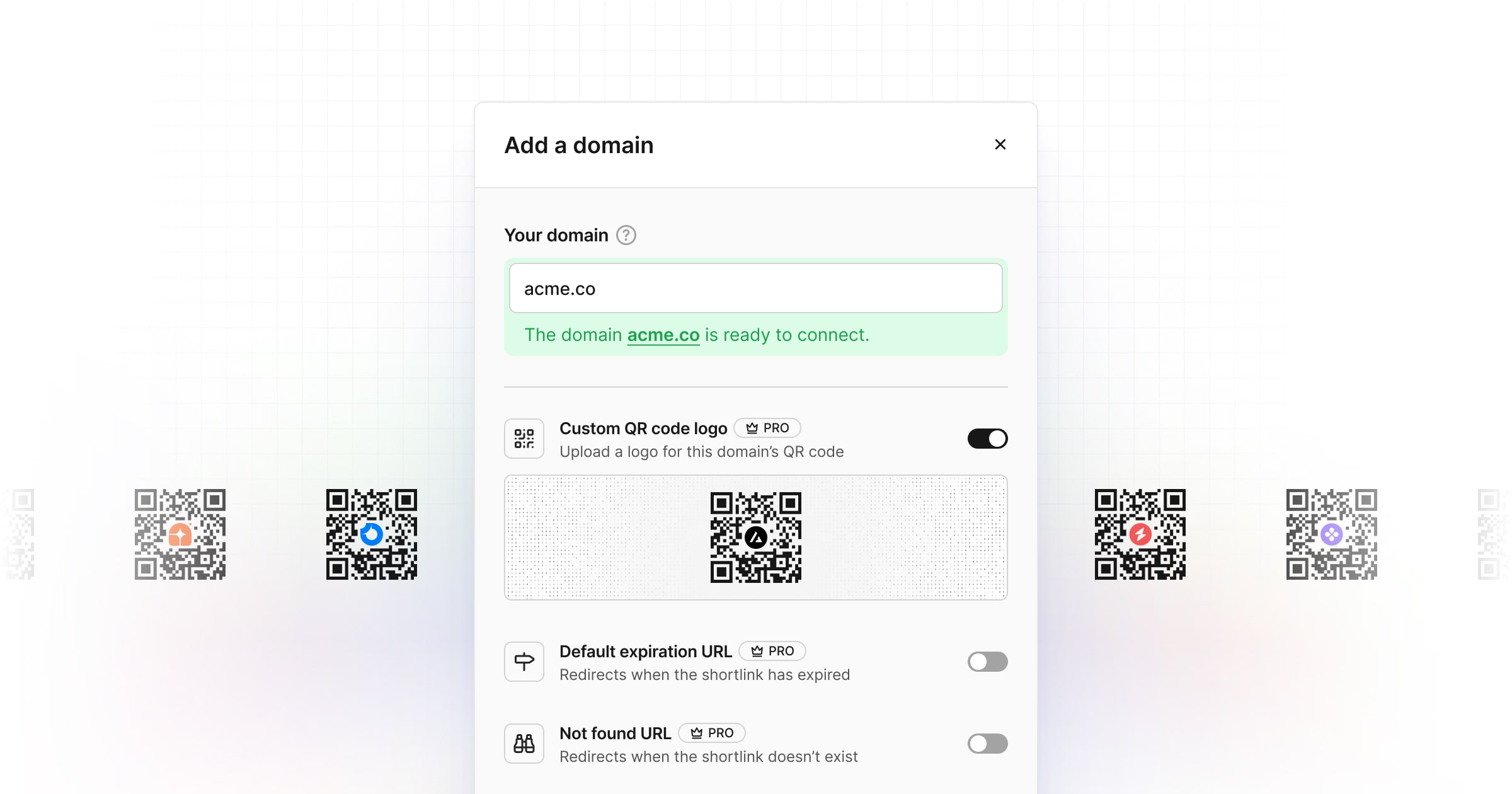
With Dub you customize your short link QR codes, giving you many options to make it your own. This can be done during link creation or editing your link later.
Logo controls
With a paid plan, Dub gives you the ability to hide or show your logo on the QR code. For free users, the Dub logo will be shown by default and cannot be removed.
If you’d like to remove the Dub logo/upload your own, please consider upgrading to a Pro plan to support us. Thank you!
Setting a custom QR code logo
There are two ways to set a custom QR code logo:
If a custom QR code logo is set for both your workspace and a domain, the
custom QR code logo for the domain will take precedence.
Option 1: Set a custom QR code logo for your entire workspace
To set a custom QR code logo for your entire workspace, you’ll need to set your workspace’s logo first by following the steps below:
- Go to your workspace settings page by clicking on the Settings tab in the sidebar.
- Scroll down to the Workspace Logo section and upload your company’s logo. We recommend using a square image for the best results.
Once you’ve set your workspace’s logo, your QR code will automatically update to use your workspace’s logo.
Option 2: Set a custom QR code logo for a specific domain
If you manage multiple brands/products on Dub, you can set custom QR code logos for each of them for better brand recognition.
To set a custom QR code logo for a specific domain, you’ll need to follow the steps below:
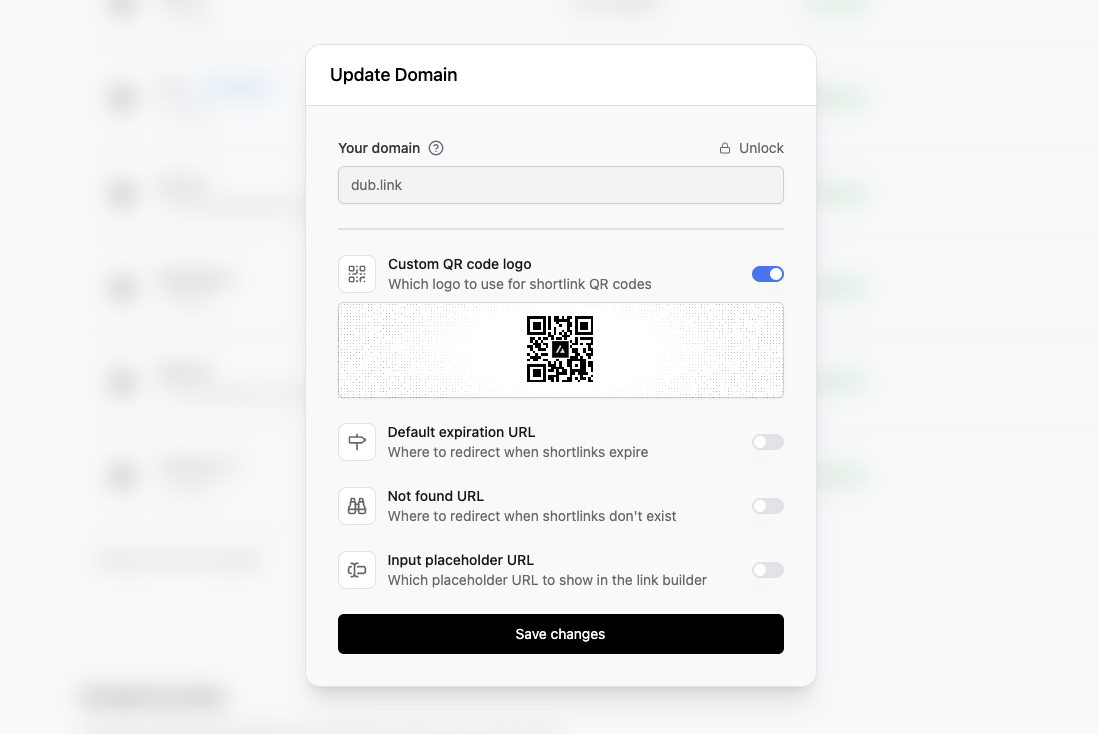
- Go to your workspace Domains settings tab.
- Click on the
⋮ button next to the domain you want to set a custom not found URL for.
- Select Edit Domain to edit the domain settings.
- Toggle the Custom QR code logo switch to enable it.
- Upload your custom QR code logo. We recommend using a square image for the best results.
- Click on the Save changes button to save the changes.
QR code styling
Dub gives you the ability to customize the style of your QR code. You can customize the dot style, marker center, marker border, and colors of your QR code.
Dot style
To change the dot style of your QR code, click on one of the three options below the QR code preview. You can choose between square, circles, and joined dot styles. The default dot style is square.
Marker center
To change the marker center style of your QR code, click on one of the two options below the QR code preview. You can choose between square, or circle center styles. The default marker center style is square.
Marker border
To change the marker border style of your QR code, click on one of the three options below the QR code preview. You can choose between square, rounded, or circle border styles. The default marker border style is square.
Colors
Dub gives you the ability to edit both the dot and marker colors of your QR code. To change the colors of your QR code, you can either enter a custom hex color code or use the color palette picker. The default dot and marker color is black (#000000).
By default, the dot and marker colors will be synced, but if you select a different color for the marker, they will be unsynced. If you want to sync the colors again, simply click on the Match dot color button above the marker color picker.
Programmatically creating QR codes
Once you’ve set a custom QR code logo, you can use our QR Code API to create QR codes programmatically as well.
On our Pro plans and above, you can choose to include your logo in the generated QR codes or hide it if you want.
- If your workspace has a logo set, your QR codes will automatically have that logo as well, but you can choose to hide it using the
hideLogo prop (example)
- If your workspace has no logo set, your QR codes will have no logo.
- Alternatively, you can also pass a custom logo in your QR codes using the
logo prop (example).
Downloading you QR code
To download your QR code, click the Download button in the top right of the editor and select your format. You’re able to download your QR code in SVG, PNG, or JPG formats.
Copying your QR code
To copy your QR code, click the Copy button in the top right of the editor. You’re able to copy the image version of your QR code, or the URL of the QR code image.